5 Steps to Customize Your Squarespace Template in 1 Hour
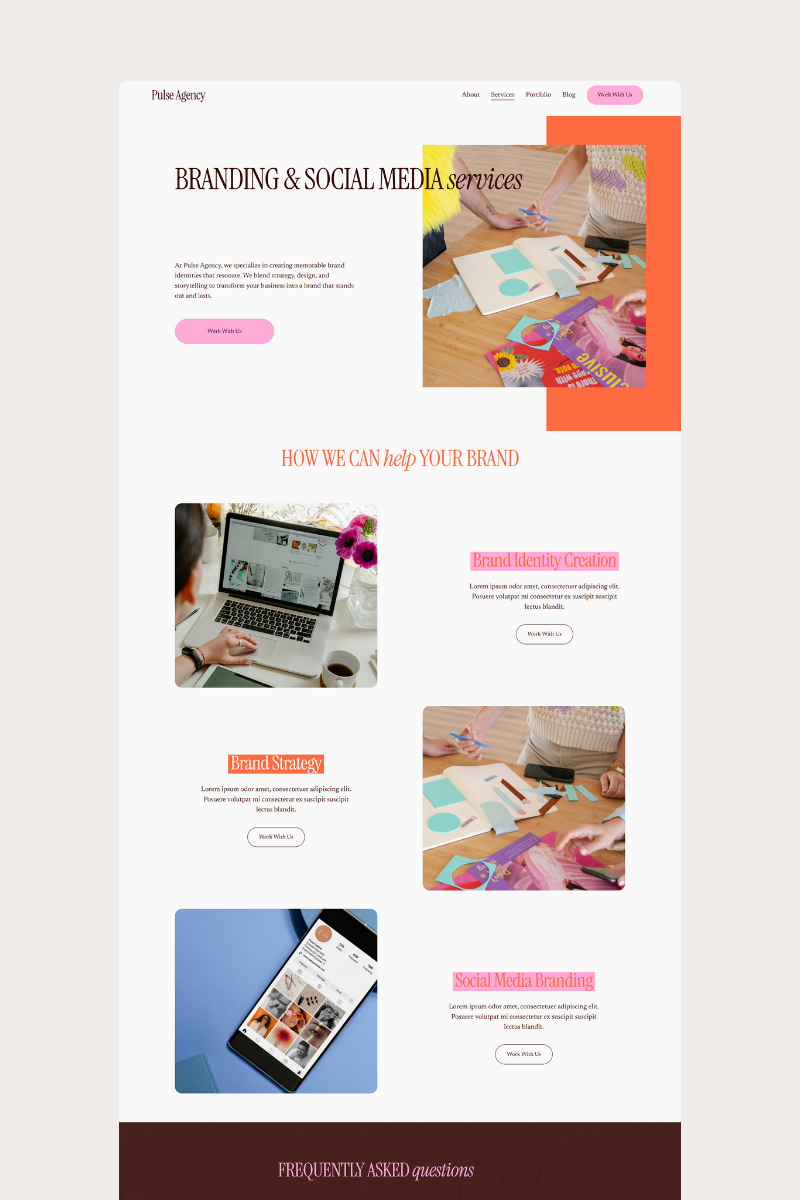
Customizing your Squarespace template doesn’t have to take days. In fact, with the right plan, you can launch a clean, strategic, and actually professional-looking site in about an hour.
If you saw my Instagram post, you already know the biggest issue DIYers face: they dive in without a roadmap. That’s where things get messy—fonts all over the place, random spacing, too many colors, and pages that feel more chaotic than cohesive.
This guide walks you through the exact 5 steps to customize your Squarespace template quickly and confidently—no design degree required.
Step 1: Set Your Style —Fonts, Colors, and Branding
Before you touch a single page, lock in your brand styles. This is the #1 thing DIYers skip—which is why their site ends up looking inconsistent.
Start with:
Two fonts (one headline, one body/paragraph)
One main color + one accent (you can choose up to 5 for colors in your Squarespace template)
A simple logo
Photo style (light + airy? bold + moody?)
Once you set these in Website → Site Styles, everything you build will instantly feel cohesive.
This solves mistakes #1 and #5 from the IG post: inconsistent fonts and too many colors.
Step 2: Build Your Home Page First
Your home page is the anchor of your entire website. Spend your first chunk of time getting this one page solid.
Focus on:
A clear headline that says what you do
A short supporting statement
Your main CTA (book, shop, contact, learn more)
A section highlighting services, products, or key benefits
Social proof (testimonials, reviews, logos)
Keep spacing clean. Use the template’s built-in section layouts to avoid the “random spacing” mistake from the IG post.
Step 3: Add Your Core Pages (Don’t Overthink It)
Your template likely comes with pre-built core pages—use them!
Stick with the basics:
About
Services / Menu
Contact
Shop (if your business needs one)
This is where DIYers get stuck because they try to reinvent the wheel. Instead, simply swap in your own text and photos.
Pro tip: Use the same section layouts throughout your site. Repeating structure makes your site feel intentional and professionally designed.
Step 4: Optimize for Mobile (Half Your Audience is Here)
One of the biggest mistakes from your Instagram post: no mobile checks.
Before you call your site “done,” switch to mobile view and look for:
Text that breaks weirdly
Oversized images
Buttons that are too small
Sections with awkward spacing
Forms that scroll off the screen
Make adjustments in mobile override for anything that looks off. Mobile polish = instant professionalism.
Step 5: Add Your Final Touches — Buttons, Links & Settings
The last step is making sure everything works.
Do a quick pass-through checklist:
✔ Update every button link
✔ Add your social links
✔ Add your favicon (tiny logo in browser tab)
✔ Set your SEO site title + description
✔ Double-check your navigation, footer, and mobile menu
This is where your template really transforms from “pretty” to “functional.”
It also ties back to the Instagram hook: stop skipping the simple things that make your site look legit.
Ready to Customize a Template in 1 Hour?
Whether you’re launching a new brand or giving your site a refresh, these five steps will help you move quickly without sacrificing strategy. And if you want the easiest possible starting point?
👉 Shop Boldsite Co. Templates — Designed for DIYers who want a beautiful site without the overwhelm.
Your template does the heavy lifting. You just follow the steps.